Featured
A man stole a car from a motorist at gunpoint Tuesday and led law enforcement on a chase from Murrieta into San Diego County, where he then fatally shot himself after being stopped on Interstate 15, authorities said.



Regulators want more information about noise, ocean debris from events widely seen across Southern California

It’s important to learn protocol in case a rattlesnake bites you or your pet while out in the backcountry
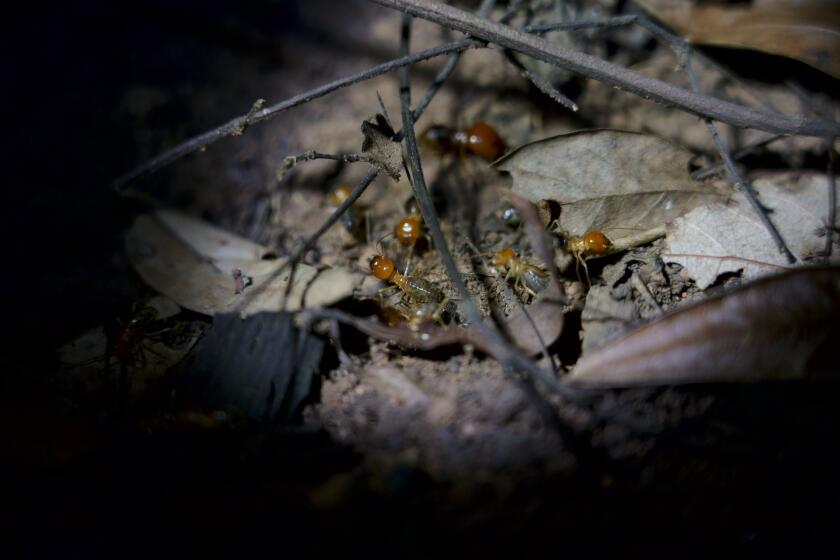
We’ve got termites!
Restrictions apply to ‘certain lighting fixtures that emit undesirable light rays into the night sky’
Southbound SR-125 will be closed over the weekend, and northbound I-5 in Carlsbad will be closed Monday
The crash was reported around 7 a.m. on Cool Valley Road east of Cole Grand Road, according to a California Highway Patrol official


Get North County news in your inbox
Top stories from the San Diego North County every Monday, Wednesday, and Friday.
You may occasionally receive promotional content from the San Diego Union-Tribune.


Escondido-based medical provider calls allegations ‘frivolous’ and ‘groundless’

New gardens, walkways, fencing and interpretive signs coming to ‘sunken gardens’ once used for outdoor bathing
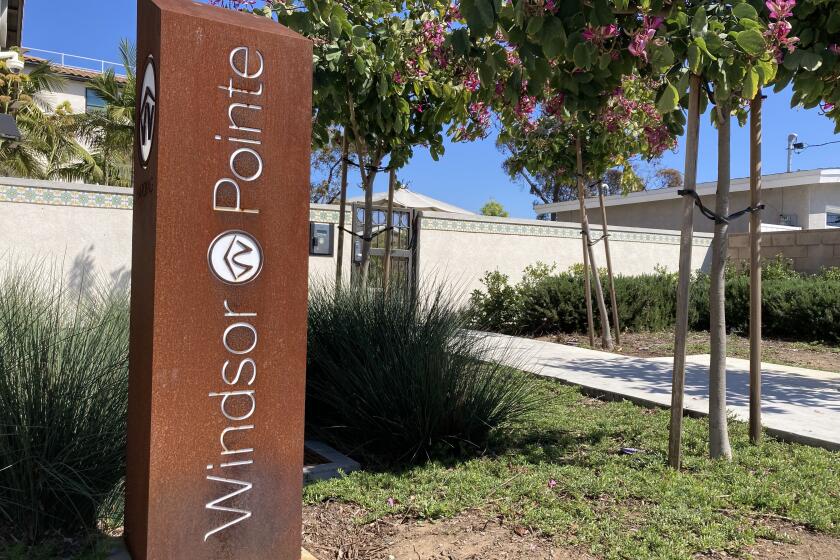
County joins city in requesting improved security and better mental health services for Windsor Pointe residents
The crash was reported around 6:45 p.m. Tuesday on state Route 78 near Earlham Street
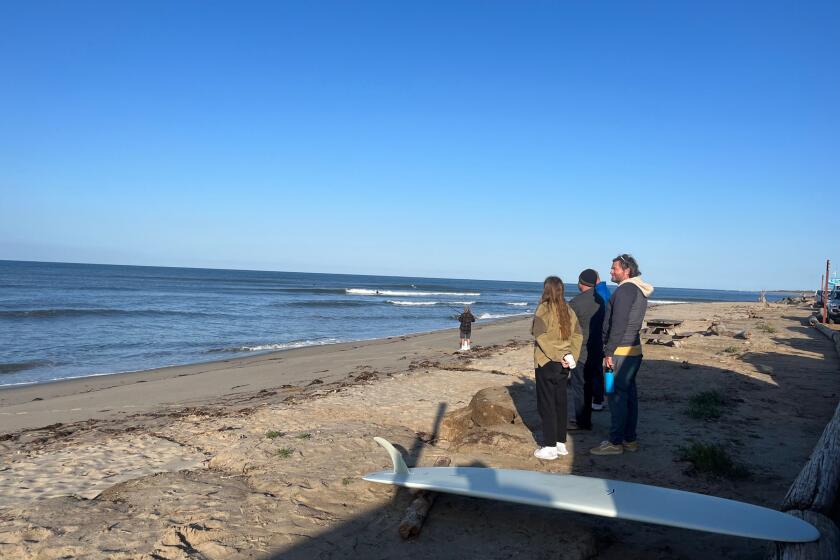
Winter storms battered the area, until the road completely collapsed, cutting off access to the treasured spot
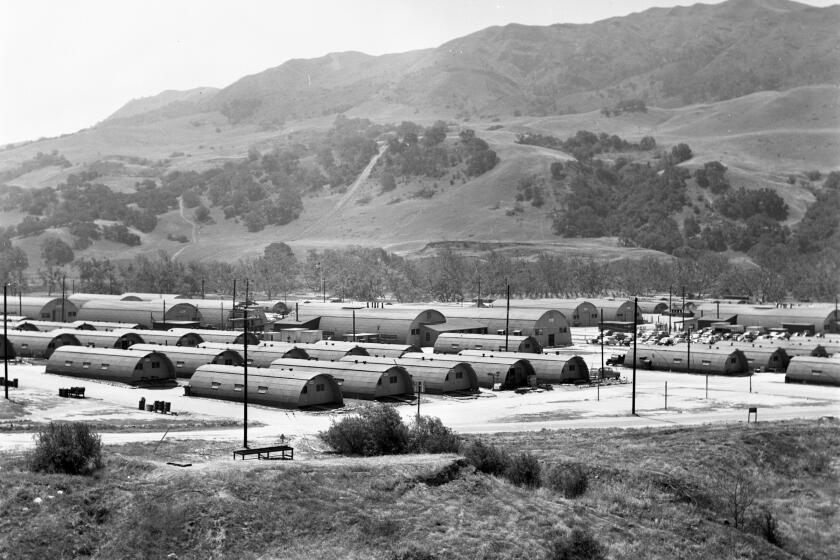
From the Archives travels today up to North County for this shot of the Camp Pendleton barracks in 1951 against the backdrop of Southern California coastal hills.
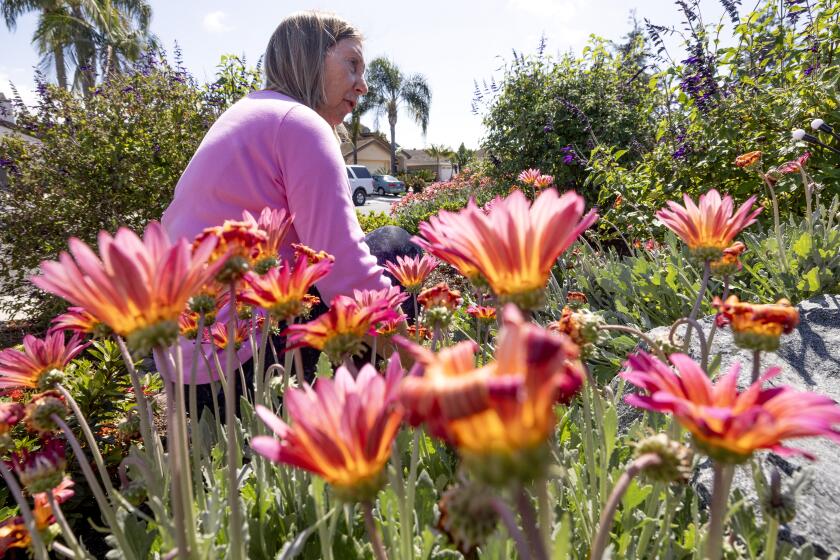
Inspired in part by a love of scenic higher elevations, resident creates an award-winning, low-maintenance landscape in the San Dieguito Water District
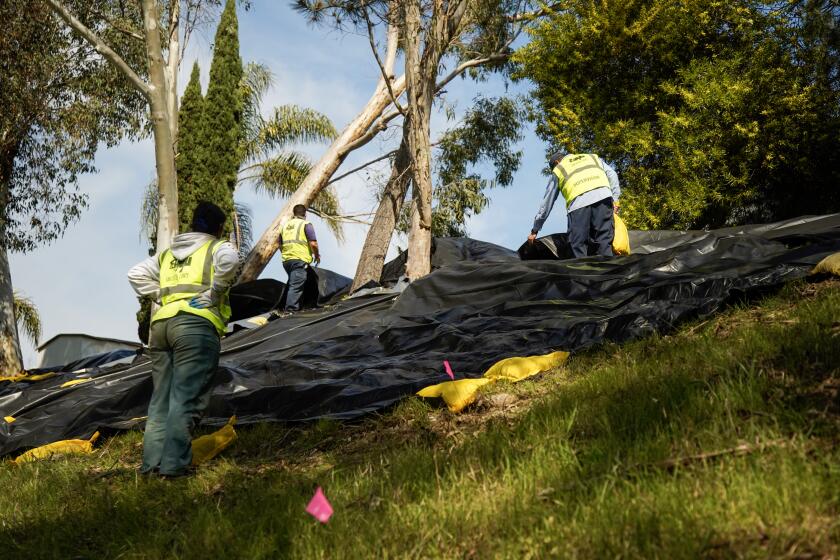
Costs continue to rise for work to stabilize hillside threatening homes and to clear creek that drains Route 78
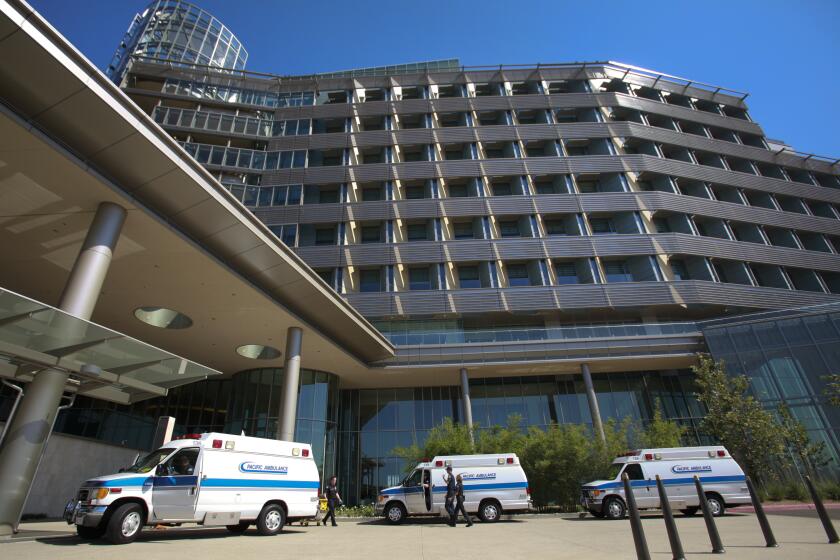
Palomar says the move will “allow the health system to focus resources” on building a new state-of-the-art facility that will break ground in May
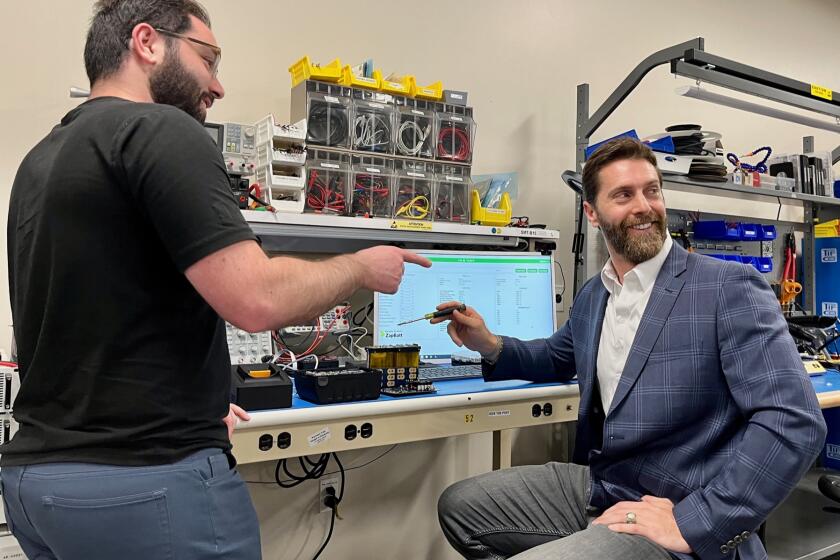
ZapBatt extends partnership with Toshiba, using lithium titanium oxide battery cells as a ‘universal adapter’
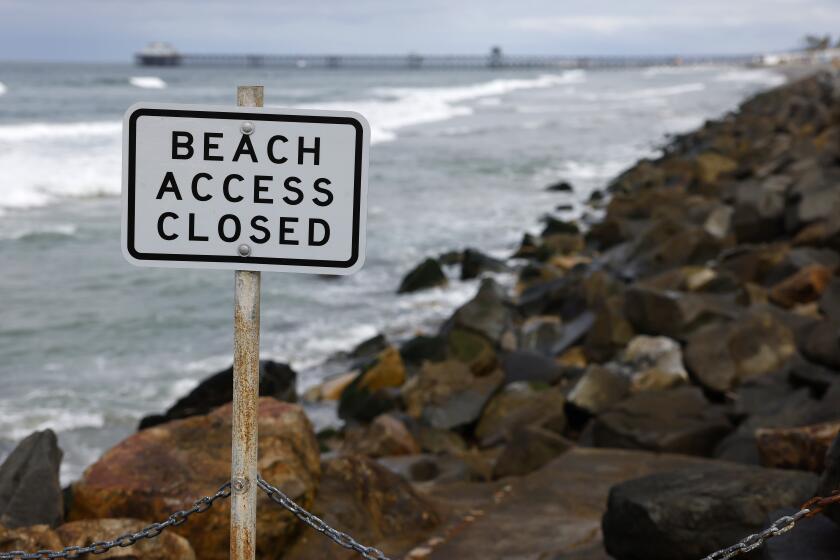
Core samples will be taken at 30 sites outside the surf zone between the San Luis Rey River and the Buena Vista Lagoon to find the best sand to replenish the beach


